
If a device on your network has suddenly lost internet access, or you’ve accidentally blocked an IP address in your router settings, you’re not alone. Routers let you block specific IP addresses for security reasons — but those blocks can also lock out devices you actually want online. Here’s how to unblock an IP address from your router, step by step, without needing an IT degree.
Why Would an IP Address Get Blocked on a Router?
Router-level IP blocks happen for a few common reasons. You may have manually added an IP to a blocklist, enabled parental controls that filtered out a device, or your router’s firewall automatically flagged traffic as suspicious. In some cases, network management software sets rules that quietly block addresses in the background. Whatever the cause, the fix usually lives inside your router’s admin panel.
Step 1: Access Your Router Admin Panel
To change any IP block settings, you need to log in to your router. Here’s how:
- Open a browser on a device that is connected to the network (even via ethernet if Wi-Fi is the issue).
- Type your router’s default gateway address into the address bar. This is typically 192.168.1.1 or 192.168.0.1. You can confirm it by running
ipconfig(Windows) ornetstat -nr(Mac/Linux) and looking for the Default Gateway. - Enter your admin username and password. If you’ve never changed these, check the label on the back of your router. Common defaults are admin/admin or admin/password.
Step 2: Find the IP Blocking or Firewall Settings
Every router brand has a slightly different interface, but you’re looking for one of these sections:
- Access Control or Access Restrictions
- Firewall Rules or IP Filtering
- Parental Controls
- Security settings
On popular routers like TP-Link, look under Advanced > Security > IP & MAC Binding or Advanced > Access Control. On Netgear routers, check Advanced > Security > Block Services. ASUS routers typically list this under Firewall > Network Services Filter.
Step 3: Remove or Whitelist the Blocked IP Address
Once you find the right section, look through the list of blocked addresses. Find the IP you want to unblock and either:
- Delete the rule entirely if the block was accidental.
- Toggle it off if your router supports enabling/disabling rules without deleting them.
- Add it to a whitelist if your router uses allowlist-based access control.
After making changes, click Save or Apply. Some routers will automatically restart, or you may need to reboot it manually for changes to take effect.
Step 4: Assign a Static IP to Prevent Future Blocks
If the device keeps getting blocked, it may be because it’s picking up a different IP via DHCP each time it connects. The fix is to assign it a static (reserved) IP address through your router’s DHCP settings. This way, the device always gets the same address, and any whitelist rules you’ve set will reliably apply. Look for DHCP Reservation or Address Reservation in your router’s LAN settings.
What If the Block Is Coming from Your ISP, Not Your Router?
Sometimes the block isn’t on your local router at all — it’s upstream, at your ISP level. This is common with IPTV services and streaming platforms that detect and restrict certain IP ranges. If you’ve checked your router settings and everything looks clear, the issue may be outside your home network entirely. In that case, using a best VPN for IPTV can route your traffic through a different IP address, effectively bypassing the block without touching your router. NordVPN (try it free for 30 days) is a solid option here — it’s fast, works across all devices, and has servers in both the US and UK.
If you’re troubleshooting streaming or IPTV issues specifically, it’s also worth running your playlist through an M3U playlist checker to rule out dead links or format errors before assuming the problem is network-related.
Still Blocked? Try Resetting Your Router
If you’ve lost access to the admin panel, forgotten your credentials, or can’t locate the specific rule causing the block, a factory reset is the nuclear option. Hold the reset button on the back of your router for 10–30 seconds until the lights flash. This wipes all custom settings, so you’ll need to reconfigure your Wi-Fi and any port forwarding rules afterward — but it will clear every IP block in the process.
Take Back Control of Your Network
Unblocking an IP address from your router is usually a five-minute job once you know where to look. Log in to the admin panel, find your firewall or access control settings, and remove the offending rule. If the block is ISP-side rather than router-side, a VPN is the quickest workaround. And if you’re dealing with networking issues related to IPTV or M3U playlists, check out our what is an M3U file guide to get a better grip on how these streams work — it’ll save you a lot of troubleshooting time down the line.
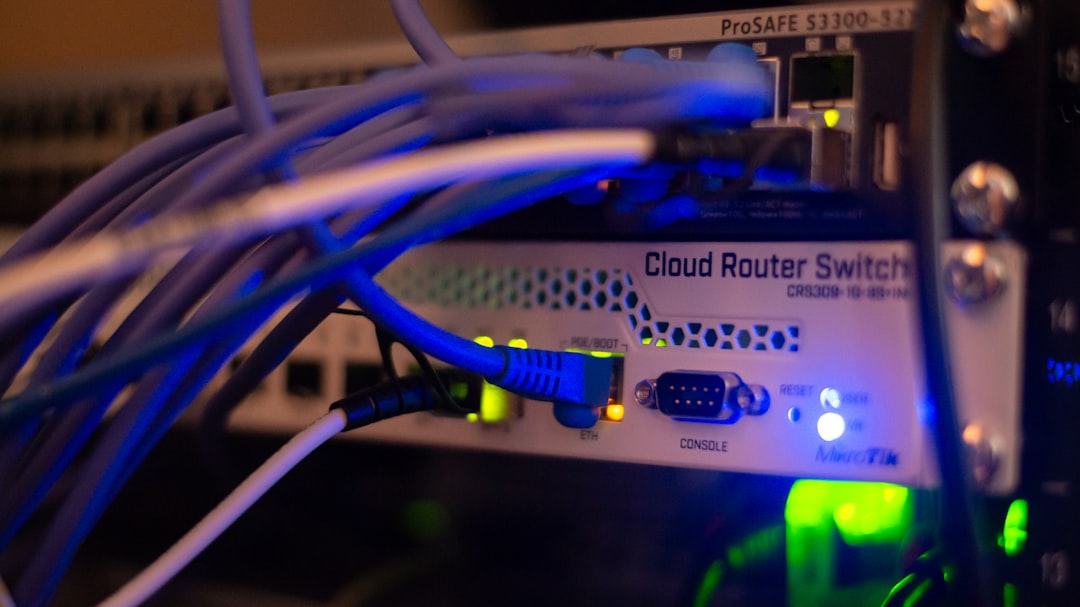
Photo by Albert Stoynov on Unsplash