
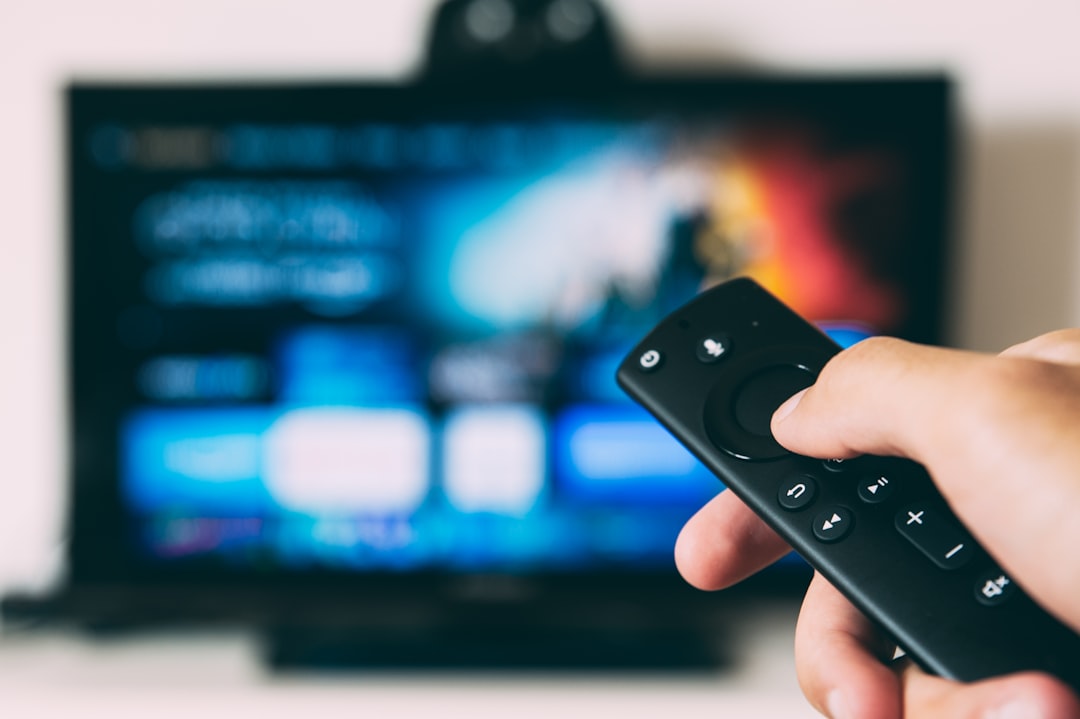
Your Smart TV is one of the most convenient ways to stream content — but it also exposes your viewing habits to your ISP, advertisers, and potentially government agencies. A VPN (Virtual Private Network) fixes that by encrypting your traffic and masking your location. The problem? Most Smart TVs don’t have a built-in VPN app store, which leaves a lot of people stuck. This free guide walks you through every realistic option for getting a VPN running on your Smart TV, regardless of the brand or model you own.
Why You Need a VPN on Your Smart TV
Smart TVs connect directly to the internet, and that connection is wide open by default. Your ISP can see every channel you watch, every streaming service you access, and every IPTV playlist you load. If you use an M3U file to stream IPTV content, your traffic is even more visible — and in some regions, unencrypted IPTV streams can attract attention from your network provider.
Beyond privacy, a VPN lets you access geo-restricted content. Want to watch a UK BBC iPlayer library from the US, or access a US Netflix catalog from abroad? A VPN routes your traffic through a server in the target country, making streaming services think you’re a local user. That alone is reason enough for most people.
Method 1: Use a VPN-Enabled Router
The cleanest solution is to install a VPN directly on your home router. When you do this, every device on your network — including your Smart TV — automatically gets VPN protection without any extra setup on the TV itself. This works for Samsung, LG, Sony, Hisense, and any other brand.
The steps are roughly:
- Log into your router’s admin panel (usually 192.168.1.1 or 192.168.0.1).
- Find the VPN or OpenVPN section (not all routers support this — check your model first).
- Enter the VPN server credentials from your provider.
- Save and restart the router.
The downside is that not all routers support VPN client mode. Budget ISP-issued routers usually don’t. If yours doesn’t, you’ll need to flash it with custom firmware like DD-WRT or buy a pre-flashed VPN router.
Method 2: Share a VPN Connection from Your Laptop or PC
If you have a Windows PC or Mac, you can connect it to a VPN and then share that connection to your Smart TV via Wi-Fi hotspot or Ethernet. This is the fastest free method to test a VPN on your TV without buying any hardware.
On Windows: Connect to your VPN, go to Network Settings, find your VPN adapter, and enable connection sharing. Your TV then connects to the PC’s hotspot instead of your regular Wi-Fi.
On Mac: Go to System Preferences → Sharing → Internet Sharing, and share the VPN connection over Wi-Fi or Ethernet.
This method works well for testing but isn’t ideal as a permanent setup since your PC needs to stay on while you’re streaming.
Method 3: Android TV and Fire TV Apps
If your Smart TV runs Android TV (like Sony or Philips models), or if you use an Amazon Fire TV Stick, you’re in luck. Most major VPN providers have native apps for these platforms. You simply search the app store, install the VPN app, log in, and pick a server. It takes about two minutes.
This is the easiest method available and the one most people should start with. If your TV doesn’t run Android TV, check whether the manufacturer offers a compatible VPN app in their own app store. Samsung’s Tizen OS, for example, has limited VPN support compared to Android TV.
For a reliable VPN with a dedicated Android TV app, we recommend trying NordVPN (try it free for 30 days) — it supports Smart DNS, has servers optimized for streaming, and offers one of the cleanest TV app experiences available right now.
Method 4: Smart DNS as a Free Alternative
If you only want to unblock geo-restricted content and aren’t worried about full encryption, Smart DNS is worth knowing about. It reroutes only the parts of your traffic that reveal your location, without encrypting the full stream. This means no speed loss, which is great for 4K streaming.
Many VPN providers include Smart DNS with a paid subscription. Some offer it free on a trial basis. You configure it by changing the DNS settings on your Smart TV — no app needed. The catch: Smart DNS offers zero privacy protection. Your ISP can still see what you’re streaming.
Should You Use a Free VPN on Your Smart TV?
Technically, yes — but with caution. Free VPNs typically come with data caps, fewer servers, and slower speeds that make streaming painful. Some free VPNs have also been caught logging user data or injecting ads into traffic. For casual testing or short-term use, a free trial from a reputable provider is a much smarter option than a permanently free VPN of unknown origin.
If you’re also managing IPTV playlists alongside your Smart TV setup, our M3U playlist checker can help you verify which streams are live before you load them — saving you time and avoiding buffering surprises mid-show. And if you’re looking for the best VPN for IPTV specifically, we’ve broken that down in a separate guide.
Which Smart TV Setup Should You Choose?
Here’s a quick breakdown to help you decide:
- Android TV or Fire TV: Install the VPN app directly — simplest option.
- Samsung, LG, or other closed OS TVs: Use a VPN router or shared PC connection.
- Just want geo-unblocking without speed loss: Use Smart DNS.
- Full privacy across all home devices: Go with a VPN router setup.
Getting a VPN on your Smart TV is more straightforward than it sounds once you know which method fits your setup. Start with the Android TV app if you can, or test a router-level VPN over a weekend. Either way, your viewing habits will stay private — and your streaming options will get a lot bigger.
Photo by Glenn Carstens-Peters on Unsplash