
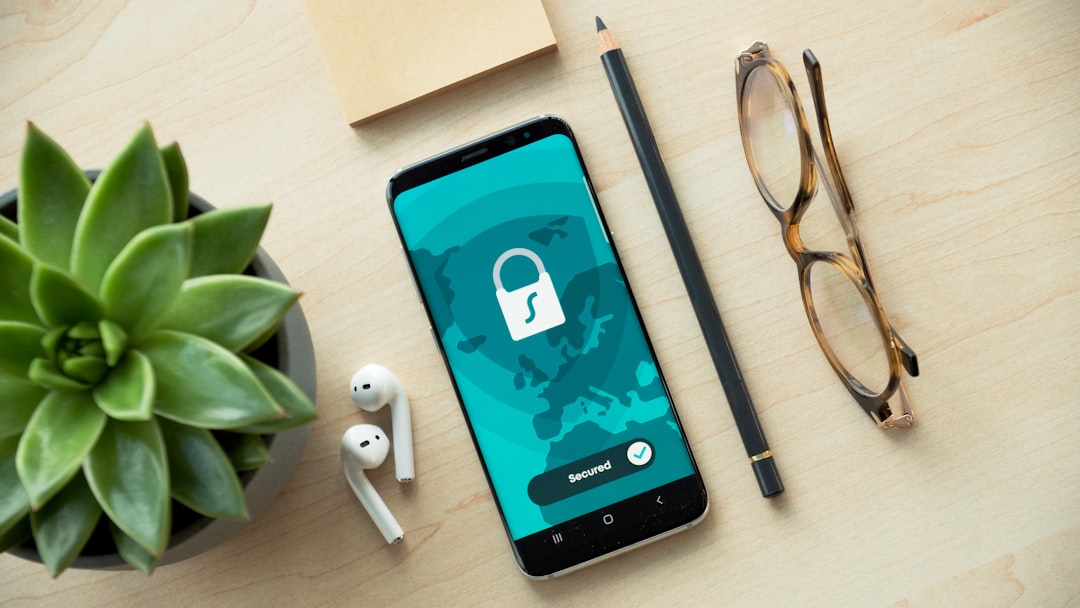
Whether your school blocks social media, your workplace restricts streaming sites, or a service isn’t available in your country, a proxy server can help you get around those restrictions. Using a proxy to unblock websites is one of the quickest fixes available — no installation required in many cases. This guide breaks down exactly how it works and how to do it safely.
What Is a Proxy Server and How Does It Unblock Sites?
A proxy server acts as a middleman between your device and the website you want to visit. Instead of your browser connecting directly to a blocked site, your request goes to the proxy first. The proxy fetches the page on your behalf and sends it back to you. Because the request appears to come from the proxy’s IP address rather than yours, geo-restrictions and basic network filters are bypassed.
There are several types of proxies: web proxies (browser-based, no setup needed), HTTP proxies (configured in your browser settings), and SOCKS proxies (more flexible, works with apps beyond just browsers). For simply unblocking a website, a web proxy or HTTP proxy is usually enough.
Method 1: Use a Web Proxy (No Setup Required)
A web proxy is the easiest option. You visit a proxy website, type in the URL you want to access, and the proxy loads it for you inside your browser. No software to install, no account needed.
Steps:
- Find a reliable web proxy. You can check our free proxy list for regularly updated options.
- Open the proxy site in your browser.
- Enter the URL of the blocked website in the address bar on the proxy page.
- Click “Go” or “Browse” — the proxy will load the site for you.
Web proxies work well for quick, one-off access. However, they often struggle with video streaming, dynamic content, and HTTPS sites. They’re fine for reading a blocked article but not ideal for watching IPTV or accessing your online banking.
Method 2: Configure a Proxy in Your Browser Settings
For more consistent use, you can set up an HTTP or SOCKS proxy directly in your browser. This routes all your browser traffic through the proxy automatically.
In Google Chrome (via system settings):
- Go to Settings → System → Open your computer’s proxy settings.
- Under “Manual proxy setup,” toggle on “Use a proxy server.”
- Enter the proxy IP address and port number.
- Save and restart Chrome.
In Firefox:
- Go to Settings → General → scroll to Network Settings → click Settings.
- Choose “Manual proxy configuration.”
- Enter the HTTP proxy address and port, then click OK.
You’ll need a working proxy IP and port. Free proxies can be unreliable — they go offline frequently and speeds vary widely. If you need something stable, a paid proxy service or a VPN is a better long-term solution.
Method 3: Use a Browser Extension
Several browser extensions act as one-click proxy switchers. Extensions like Proxy SwitchyOmega (Chrome/Firefox) let you toggle between different proxy servers without digging through system settings. This is useful if you regularly need to switch between proxied and normal browsing.
Just be cautious about which extensions you install. Stick to well-reviewed ones from the official browser stores, and avoid extensions that request access to your passwords or payment data.
When a Proxy Isn’t Enough — Consider a VPN
Proxies are great for basic website unblocking, but they have real limitations. Most free proxies don’t encrypt your traffic, meaning your internet provider or network admin can still see what you’re doing — they just can’t see the destination. They also tend to be slow and unreliable.
If you need to unblock streaming services, access region-locked IPTV content, or stay private on public Wi-Fi, a VPN is the smarter choice. A VPN encrypts all your traffic and masks your IP address across every app on your device — not just your browser. NordVPN (try it free for 30 days) is one of the most reliable options for this, with servers in 60+ countries and strong speeds for streaming.
For IPTV users specifically, check out our guide on the best VPN for IPTV to see which services handle live streams without buffering.
Stay Safe When Using Proxies
Not all proxies are trustworthy. Some free proxy services log your browsing activity or inject ads into the pages you visit. A few have even been caught stealing login credentials. To stay safe:
- Avoid entering passwords or sensitive data through a free web proxy.
- Use HTTPS proxies where possible — look for a padlock icon.
- Stick to well-known, reputable proxy services.
- For anything sensitive, use a VPN instead.
Should You Use a Free Proxy or Pay for One?
Free proxies are fine for casual, low-stakes browsing — checking a blocked news site at work or accessing a region-locked article. For anything more serious — streaming, privacy, or regular daily use — a paid proxy or VPN is worth the small cost. The performance difference is significant, and you’re not trading your data to use the service.
If you’re managing IPTV playlists and need to test streams from different regions, pairing a reliable proxy with a M3U playlist checker can save you a lot of troubleshooting time.
Photo by Dan Nelson on Unsplash